
What Is HEIC? Why Your iPhone Uses It and When You Need to Convert
If you've ever transferred photos from an iPhone to a Windows PC and found files you couldn't open, or tried to upload images to a website that rejected them, you've run into HEIC. It's the default photo format on every iPhone since iOS 11 — which means billions of people are generating HEIC files daily, often without knowing it. This guide explains what HEIC is, why Apple chose it, and exactly when you need to convert it.
What Is HEIC?
HEIC stands for High Efficiency Image Container. It's Apple's implementation of the HEIF (High Efficiency Image File Format) standard, developed by the Moving Picture Experts Group — the same body behind the MP4 and MP3 standards.
Apple switched to HEIC as the default iPhone camera format in 2017 with iOS 11. The reason was straightforward: iPhone cameras were improving rapidly (more megapixels, HDR, Portrait Mode depth data), and JPG — a format from 1992 — wasn't keeping up with either the quality capabilities or storage demands.
HEIC files use the .heic extension. You may occasionally see .heif — this is the broader container format; HEIC is Apple's specific profile of it.
Why HEIC Produces Smaller Files Than JPG (Without Losing Quality)
HEIC uses the H.265 (HEVC) video compression standard adapted for still images. This is significantly more sophisticated than the compression used by JPG, which is based on 1990s technology.
The practical result: a typical iPhone photo saved as HEIC is roughly half the file size of the equivalent JPG, with the same or better visual quality.
| Scenario | JPG Size | HEIC Size |
|---|---|---|
| 12MP iPhone photo | ~3–5 MB | ~1.5–2.5 MB |
| 48MP iPhone photo (Pro models) | ~10–15 MB | ~5–8 MB |
| Burst sequence (10 photos) | ~35 MB | ~17 MB |
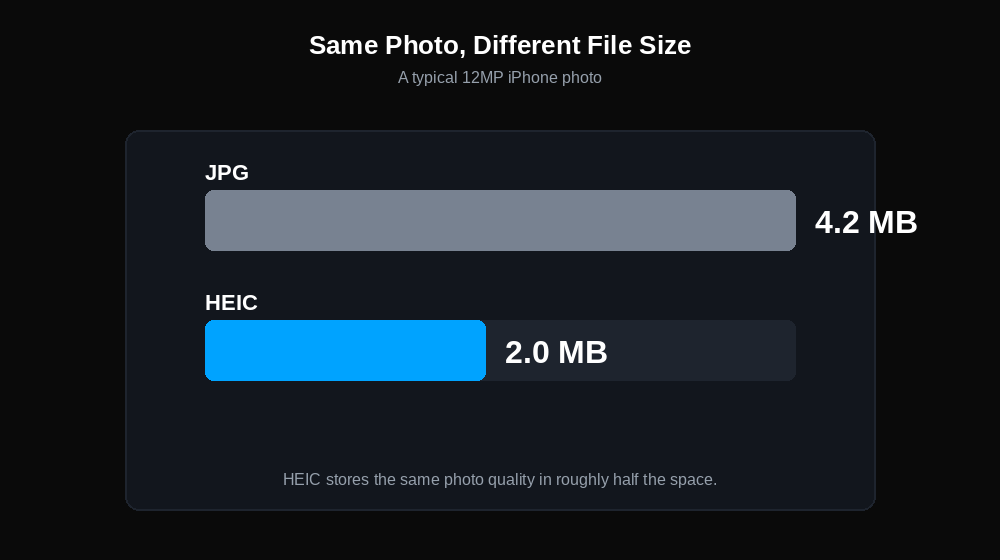
On a 256GB iPhone, this difference means roughly twice as many photos before you run out of space. That's not a marginal improvement — it's why Apple made the switch.
HEIC also stores more information than JPG, including:
- Depth data from Portrait Mode (used for background blur effects)
- Wide color gamut (Display P3 color space) for more accurate colors
- HDR image data from Smart HDR
- Live Photo data (the short video clip attached to Live Photos)
None of this data survives conversion to JPG, which is something many guides don't mention.
The Compatibility Problem: Where HEIC Fails
HEIC's weakness is adoption outside the Apple ecosystem. Despite being an open standard, it's effectively an Apple format in practice:
Windows: Windows 10 and 11 can open HEIC files, but only after installing the HEIF Image Extensions codec from the Microsoft Store (it's free, but not pre-installed). Without it, HEIC files appear as unrecognizable in File Explorer. Many Windows users hit this problem and blame the format.
Android: HEIC is not a native Android format. Most Android apps cannot open HEIC files without third-party software.
Web uploads: Many websites — including some major ones — don't accept HEIC uploads. Facebook, Instagram, and Twitter handle HEIC, but countless other platforms reject it silently or display broken image icons.
Professional software: Adobe products added HEIC support in recent years, but many specialized or older tools don't handle it. Print labs, stock photo sites, and clients using non-Adobe software may not accept HEIC.
Email: Sending HEIC images in email is unpredictable. The recipient may see the image fine (if they're on Apple Mail) or see a broken attachment.
If your HEIC files aren't opening where you need them, convert them instantly at DigiToolzHub — no software needed, no account required.
How Apple Handles This Automatically (And Why You Sometimes Don't Notice)
Apple knew compatibility would be a problem, so they built in automatic conversion. When you:
- AirDrop to a Mac: HEIC is preserved (Mac supports it natively)
- Share via Messages or Mail: iOS can automatically convert to JPG before sending
- Upload via Safari on iPhone: iOS converts to JPG automatically for web forms
- Export from Photos on Mac: You can choose JPG as the export format
The setting that controls this on iPhone is under Settings → Camera → Formats: "High Efficiency" (HEIC) vs. "Most Compatible" (JPG). If you regularly share photos with non-Apple users or upload to websites, switching to "Most Compatible" eliminates the friction — at the cost of larger files.
Should You Shoot in HEIC or JPG on iPhone?
This depends on what you do with your photos:
Stick with HEIC if:
- Most of your photos stay on Apple devices (iPhone, Mac, iPad)
- You use iCloud Photos (HEIC works perfectly in the Apple ecosystem)
- Storage space matters to you
- You use Portrait Mode or Live Photos and want to preserve that data
Switch to JPG ("Most Compatible") if:
- You regularly share photos with Windows or Android users
- You upload photos to websites or apps that don't support HEIC
- You work with photo editing software that has spotty HEIC support
- You send photos to a professional print lab
What's Lost When You Convert HEIC to JPG
This is the part most conversion guides skip: HEIC → JPG isn't lossless, and not just because of compression. The conversion also strips:
- Depth map data — Portrait Mode blur becomes permanently baked in, rather than adjustable
- Wide color gamut — JPG uses sRGB, so P3 colors are mapped down
- HDR information — converted to a standard dynamic range image
- Live Photo video clip — the motion component is discarded
- Edit history — any non-destructive edits applied in Photos are flattened
For casual sharing, none of this matters. For anyone doing serious photo work or wanting to preserve original data, keep the HEIC originals and convert copies only when needed.
HEIC vs. JPG vs. WebP: Format Comparison
| Feature | HEIC | JPG | WebP |
|---|---|---|---|
| File size (same quality) | Smallest | Largest | Middle |
| Transparency support | No | No | Yes |
| Wide color gamut | Yes | Limited | Limited |
| Depth/metadata support | Yes | No | No |
| Browser support | Limited | Universal | Modern browsers |
| Desktop compatibility | Apple-native | Universal | Growing |
| Best for | iPhone photos | Universal sharing | Web delivery |
How to Convert HEIC Files
The most common conversion needs:
- HEIC → JPG — the default conversion for sharing, web uploads, and cross-platform compatibility
- HEIC → PNG — when you need lossless quality (larger files, but no compression artifacts)
- HEIC → PDF — for document workflows, printing, or sharing image collections
- HEIC → WebP — for web publishing where you want small files but modern format support
On a Mac, the easiest method is opening in Preview and exporting (File → Export). On Windows, you'll need the HEIF Extensions codec or a conversion tool. For batch conversion or quick one-off conversions without installing software, use DigiToolzHub directly in your browser.
Frequently Asked Questions
Q: Why can't my Windows PC open HEIC files?
A: Windows doesn't include the HEIC codec by default. Install "HEIF Image Extensions" from the Microsoft Store (free), and HEIC files will open in Photos and File Explorer normally. Alternatively, convert the files to JPG first. The fastest solution is converting your HEIC files to JPG or PNG. DigiToolzHub handles it instantly in your browser — no software or downloads needed.
Q: Does converting HEIC to JPG lose quality?
A: Some quality is lost — it's a lossy-to-lossy conversion — but at high quality settings, the visual difference is minimal for standard viewing. More importantly, metadata like depth information and wide color gamut are stripped in the process.
Q: Why does my iPhone send JPGs sometimes and HEIC other times?
A: iOS automatically converts to JPG when sharing via certain methods (web uploads, some share sheet options) to ensure compatibility. Direct AirDrop to Apple devices sends the native HEIC.
Q: Can I change my iPhone to stop shooting HEIC?
A: Yes. Go to Settings → Camera → Formats and select "Most Compatible." Your iPhone will shoot JPG instead of HEIC from that point forward. Existing photos are unaffected.
Q: Is HEIC the same as HEIF?
A: HEIF (High Efficiency Image File Format) is the container standard. HEIC is Apple's implementation using H.265 compression. They're closely related but technically distinct — HEIC is a specific type of HEIF file. On Apple devices, the terms are used interchangeably.
Q: Will HEIC ever be universally supported?
A: Slowly. Windows, Google Photos, and Adobe products have all added support in recent years. But because it's perceived as an Apple format and requires licensed H.265 codec support, adoption outside the Apple ecosystem has been gradual. JPG is likely to remain the universal safe choice for cross-platform sharing for the foreseeable future.
HEIC is Apple's practical answer to modern smartphone photography: smaller files, better quality, and richer metadata. Its limitation is the world outside Apple's ecosystem. For iPhone users, the best workflow is usually to keep originals in HEIC and convert copies to JPG, PNG, or WebP whenever you need to leave the Apple bubble.